2019年5月25日 星期六

ASP.NET Core 安裝 NSwag 自動產生 API 說明文件檔案

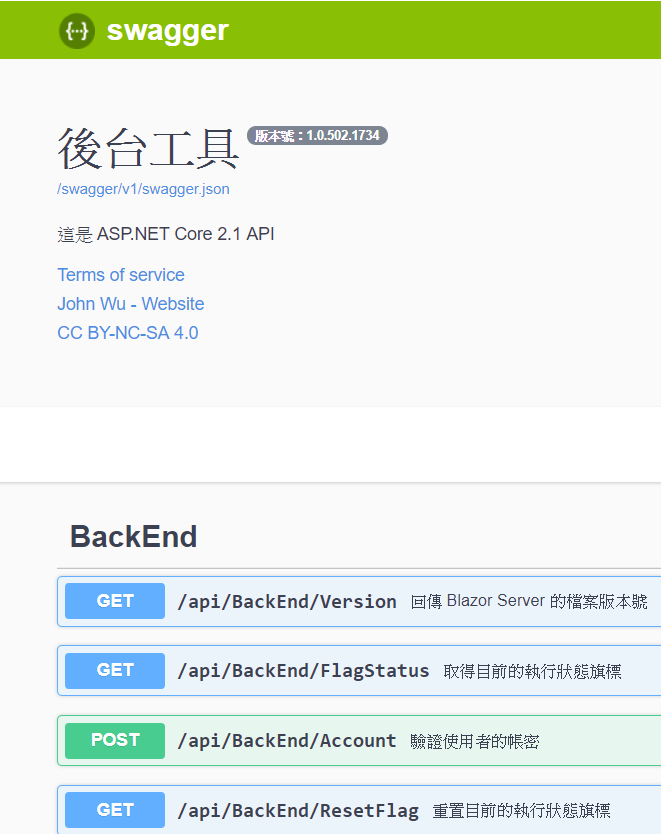
目的:自動抓取註解產生下面的 API 說明文件網頁


上次講到 Swashbuckle 在 Ubuntu 環境,
專案執行發生異常,
於是就換了 NSwag,
目前執行下來沒什麼問題,
這邊記錄一下安裝的過程與要注意的事項。


安裝 NuGet 套件:
NSwag.AspNetCore                                  NSwag 主要套件
NSwag.SwaggerGeneration.AspNetCore 自動從 cs 抓註解到我們指定的 xml 檔案


新增「隱藏警告:1591」

PS.特別要注意 xml 檔案名稱要跟專案一樣,才能自動抓取到註解內容


先引用 NSwag.AspNetCore


using NSwag.AspNetCore;


設定一下 Startup.cs 的 ConfigureServices


public void ConfigureServices(IServiceCollection services)
{
 services.AddMvc();


 #region Register the Swagger services

 // Register the Swagger services
 services.AddSwaggerDocument();

 #endregion Register the Swagger services
}


與設定一下 Startup.cs 的 Configure


public void Configure(IApplicationBuilder app, IHostingEnvironment env)
{


       #region Register the Swagger generator and the Swagger UI middlewares

       // Register the Swagger generator and the Swagger UI middlewares
 
        app.UseSwagger();
        app.UseSwaggerUi3();

        #endregion Register the Swagger generator and the Swagger UI middlewares


        app.UseMvc(routes =>
        {
             routes.MapRoute(name: "default", template: "{controller}/{action}/{id?}");
        });
}


記得註解 <summary> 要寫,每次編譯後 XML 的內容都會更新唷!


/// <summary>
/// 簡單的 Controller 範例
/// </summary>


程式開啟後,輸入網址 http://localhost:port/swagger
就能開啟 Swagger UI 網頁


2019年5月23日 星期四

c# async 和 await 簡易說明

函式前面增加 async 就會成為異步函式(執行過程中不會等待函式執行完畢才往下跑)


/// <summary>
/// 異步函式
/// </summary>
static async void AsyncFun()
{
 // 裡面要有 await 關鍵字

 // await 後面要接回傳 Task 的函式
 // 因為回傳 Task 簡稱他為異步任務

 List<formatter> f_ = new List<formatter>{
  new Formatter("「異步任務」", Color.Red)};

 Print("執行 {0} 『開始』", Color.Yellow, f_.ToArray());
 bool ret_ = await DelayFun();
 Print("執行 {0} 『結束』", Color.Yellow, f_.ToArray());
}


異步函式內需要有await 關鍵字
await 後面要接回傳 Task 的函式
因為回傳 Task 簡稱他為異步任務


/// <summary>
/// 異步任務
/// </summary>
/// <returns>true</returns>
static Task<bool> DelayFun()
{
 return Task.Run(() =>
 {
  List<Formatter> f_ = new List<Formatter>{
   new Formatter("等待五秒", Color.YellowGreen)};

  Print("{0} 開始", Color.Red, f_.ToArray());
  Thread.Sleep(5000);
  Print("{0} 結束", Color.Red, f_.ToArray());
  return true;
 });
}


異步函式呼叫與一般函式一樣
只差在執行中不等待函式執行完


static void Main(string[] args)
{
 ....
 // 異步函式
 List<Formatter> f0_ = new List<Formatter>{
  new Formatter("「異步函式」", Color.Red)};
 Print("執行 {0} 開始", Color.Green, f0_.ToArray());
 AsyncFun();
 Print("執行 {0} 結束", Color.Green, f0_.ToArray());
 ....
}


最後可以看到「異步任務」
在程式執行完畢後
才把任務跑完


利用 .NET Standard 函式庫 的 C# 取得 Git 版本號


這邊遇到找不到 Git 的環境變數
所以在 @"Git\cmd" 做了一些修改
這邊得看看你 Git 的執行檔在那個目錄內
再做調整與修改


public class CommitID
{
 private static string EnvironmentVariable
 {
  get
  {
   string sPath = Environment.GetEnvironmentVariable("Path");
   var result = sPath.Split(';');
   for (int i = 0; i < result.Length; i++)
   {
    if (result[i].Contains(@"Git\cmd"))
    {
     sPath = result[i];
    }

   }
   return sPath;
  }
 }

 public static void GetCommitID()
 {
  string gitPath = System.IO.Path.Combine(EnvironmentVariable, "git.exe");
  Console.WriteLine($"環境路徑:{gitPath}");
  Process p = new Process();
  p.StartInfo.FileName = gitPath;
  p.StartInfo.Arguments = "rev-parse HEAD";
  p.StartInfo.CreateNoWindow = true;
  p.StartInfo.UseShellExecute = false;
  p.StartInfo.RedirectStandardOutput = true;
  p.OutputDataReceived += OnOutputDataReceived;
  p.Start();
  p.BeginOutputReadLine();
  p.WaitForExit();
 }

 private static void OnOutputDataReceived(object sender, DataReceivedEventArgs e)
 {
  if (e != null && !string.IsNullOrEmpty(e.Data))
  {
   ID = e.Data;

   Console.WriteLine(e.Data);
  }
 }

 public static string ID { get; set; } = "";
}


使用方法:
先呼叫 GetCommitID()
之後 ID 就會有 Git 的版本號
他會取得目前執行目錄上的 Git 版本號


Visual Studio 2017利用 T4 自動產生版本號(寫入 Git 版本號)


「工具」 「擴充功能與更新」

安裝「T4Executer 」後 T4 的關鍵字都會有對應的顏色標示


安裝 「Devart T4 Editor」可以設定編譯前先執行 T4 範本


設定編譯前執行 T4 (圖為執行狀態)


設定畫面


新建文字檔 附檔名為 *.tt
就會出現「轉換所有 T4 範本」
點擊就會執行 T4 範本


首先註解 AssemblyInfo.cs 裡面的
[assembly: AssemblyFileVersion("0.0.0.0")]

[assembly: AssemblyTitle("ConsoleApp")]
下面的 SharedInfo.tt 檔案(T4 範例)
會自動產生一個 SharedInfo.cs
並自動填入
[assembly: AssemblyFileVersion("0.0.0.0")]

[assembly: AssemblyTitle("ConsoleApp")]
的內容


<#@ template debug="false" hostspecific="true" language="C#" #>
<#@ import namespace="System.IO" #>
<#@ assembly name="$(SolutionDir)\CommitID\bin\Debug\netstandard2.0\MyLibrary.Git.dll" #>
<#@ import namespace="MyLibrary.Git" #>
<#@ assembly name="C:\Program Files\dotnet\sdk\2.1.700-preview-009597\Microsoft\Microsoft.NET.Build.Extensions\net461\lib\netstandard.dll" #>
<#@ output extension=".cs" #>
<#
     int major = 0; 
     int minor = 0; 
     int build = 0; 
     int revision = 0; 
  
     try
     {
         using(var f = File.OpenText(Host.ResolvePath("SharedInfo.cs")))
         {
             // 取值做 +1 使用
             //string maj = f.ReadLine().Replace("//","");
             //string min = f.ReadLine().Replace("//","");
             //string b   = f.ReadLine().Replace("//","");
             //string r   = f.ReadLine().Replace("//","");
  
             // 轉成日期
             string maj = DateTime.Now.Year.ToString();
             string min = DateTime.Now.Month.ToString();
             string b   = DateTime.Now.Day.ToString();
             string r   = DateTime.Now.Minute.ToString() + "0" + DateTime.Now.Second.ToString();

             major    = int.Parse(maj); 
             minor    = int.Parse(min); 
             build    = int.Parse(b); 
             revision = int.Parse(r) + 1; 
         }
     }
     catch
     {
         major    = 1; 
         minor    = 0; 
         build    = 0; 
         revision = 255; 
     }

    // 呼叫自己個函式庫
 CommitID.GetCommitID();
 string gitver = CommitID.ID;
 #>
 //<#= major #>
 //<#= minor #>
 //<#= build #>
 //<#= revision #>

 //<#= gitver #>

 // 
 // This code was generated by a tool. Any changes made manually will be lost
 // the next time this code is regenerated.
 // 
  
 using System.Reflection;
  
 [assembly: AssemblyFileVersion("<#= major #>.<#= minor #>.<#= build #>.<#= revision #>")]
 [assembly: AssemblyTitle("<#= gitver #>")]


MyLibrary.Git 是我寫的 .NET Standard Library
透過


<#@ assembly name="$(SolutionDir)\CommitID\bin\Debug\netstandard2.0\MyLibrary.Git.dll" #>
<#@ import namespace="MyLibrary.Git" #>


使用 .NET Standard Library 還要加入 .NET Standard 的 dll


<#@ assembly name="C:\Program Files\dotnet\sdk\2.1.700-preview-009597\Microsoft\Microsoft.NET.Build.Extensions\net461\lib\netstandard.dll" #>


不然編譯會有錯誤訊息:
錯誤 正在編譯轉換: 類型 'Object' 定義在未參考的組件中。您必須加入組件 'netstandard, Version=2.0.0.0, Culture=neutral, PublicKeyToken=cc7b13ffcd2ddd51' 的參考。

請依據自己的 dotnet 版本選擇目錄,例如:我的是 net461


2019年5月22日 星期三

Visual Studio 2017 / 2019 自動產生版本號 Automatic Version 2

在「擴充功能與更新」安裝 Automatic Version 2


「工具」欄位會多一個 「Automatic Version Setting」


設定一下版本號的規則
記得先指定 「Custom System Version」
左邊如果選的是「User's Global Default」
皆下來每個專案都會自動產生版本號
一般都會指定專案(左邊最下面的那個)
做自動生產專案設定


接下來編譯就會自動更新版本號了


Visual Studio Code 的 cs 檔案中文亂碼解決方法

點擊右下編碼


選擇『以編碼重新開啟』


選擇『Traditional Chinese (Big5) cp950』
這時文件內的中文就會正常顯顯示了


因為 Visual Studio Code 開啟檔案預設是 UTF-8
所以要避免每次都要設定『Traditional Chinese (Big5) cp950』
選擇『以編碼儲存』


選擇 UTF-8 下次打開檔案就能正常顯示中文了


Visual Studio Code 調整顯示字體大小

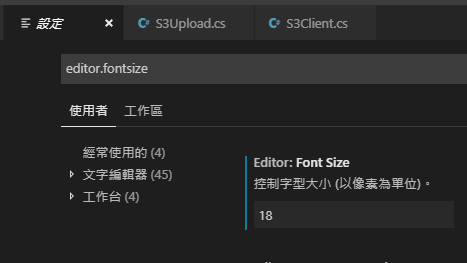
在「設定」中輸入

editor.fontsize
如下圖框內調整字體大小


PS、目前不支援Ctrl + mouse scroll up/down 調整字體大小
Ctrl + 放大字體
Ctrl - 縮小字體


2019年5月18日 星期六

ASP.NET Core 安裝 Swashbuckle 自動產生 API 說明文件檔案

目的:自動抓取註解產生下面的 API 說明文件網頁


NuGet 安裝 Swashbuckle.AspNetCore


引用 Swashbuckle.AspNetCore.Swagger


using Swashbuckle.AspNetCore.Swagger;

設定 Startup.cs 的 ConfigureServices

public void ConfigureServices(IServiceCollection services)
{
 services.AddMvc();
 
 #region 註冊 Swagger
 // 註冊 Swagger
 services.AddSwaggerGen(c =>
 {
  c.SwaggerDoc(
   // name: 攸關 SwaggerDocument 的 URL 位置。
   name: "v1",
   // info: 是用於 SwaggerDocument 版本資訊的顯示(內容非必填)。
   info: new Info
   {
    Title = "標題",
    Version = "版本號 1.0.0",
    Description = "說明",
    TermsOfService = "無",
    Contact = new Contact
    {
     Name = "強尼 John Wu",
     Url = "https://blog.johnwu.cc"
    },
    License = new License
    {
     Name = "西西 CC BY-NC-SA 4.0",
     Url = "https://creativecommons.org/licenses/by-nc-sa/4.0/"
    }
   }
  );
  // 為 Swagger JSON and UI設置xml文檔註釋路徑
  var basePath = Path.GetDirectoryName(typeof(Program).Assembly.Location);//獲取應用程序所在目錄(絕對,不受工作目錄影響,建議採用此方法獲取路徑)
  var xmlPath = Path.Combine(basePath, "Swagger.xml");
  c.IncludeXmlComments(xmlPath);
 });
 #endregion 註冊 Swagger
}


點選「屬性」「建置」
新增「隱藏警告」1591
新增「XML 文件檔案」程式碼設定 Swagger.xml 這邊也填入 Swagger.xml


設定 Startup.cs 的 Configure

public void Configure(IApplicationBuilder app, IHostingEnvironment env)
{

 #region 註冊 Swagger
 // 註冊 Swagger
 app.UseSwagger();
 app.UseSwaggerUI(c =>
 {
  c.SwaggerEndpoint(
   // url: 需配合 SwaggerDoc 的 name。 "/swagger/{SwaggerDoc name}/swagger.json"
   url: "/swagger/v1/swagger.json",
   // name: 用於 Swagger UI 右上角選擇不同版本的 SwaggerDocument 顯示名稱使用。
   name: "RESTful API v1.0.0"
  );
 });
 #endregion 註冊 Swagger

 app.UseMvc(routes =>
 {
  routes.MapRoute(name: "default", template: "{controller}/{action}/{id?}");
 });

}
   
程式開啟後,輸入網址 http://localhost:port/swagger
就能開啟 Swagger UI 網頁


PS.在 Blazor 安裝 Swagger 後,
在 Ubuntu 上執行有異常(收不到封包),
最後換了 NSwag 才正常


2019年5月14日 星期二

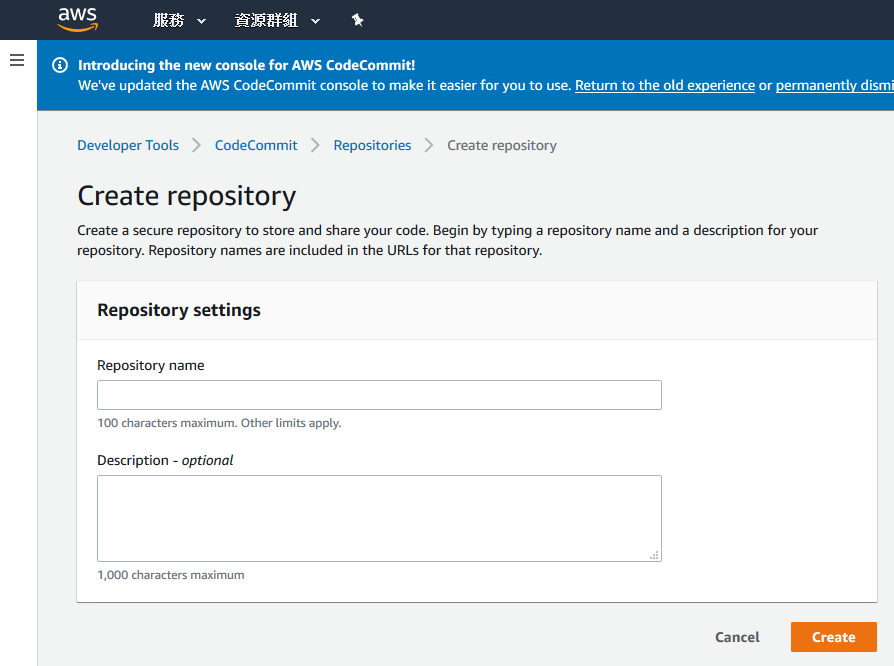
AWS 「CodeCommit」 的「Create repository」

點擊「Create repository」


填寫 Repository Name 與 Description
然後按下「Create」


點擊 Clone URL 欄位下的 HTTPS
可以複製 Git 的 Url

2019年5月8日 星期三

ASP.NET Core 的內建 DI

以讀取預設的 appsetting.json 為例


{
  "Logging": {
    "LogLevel": {
      "Default": "Warning"
    }
  }
}


建立存放 appsetting.json 的類別 MySetting.cs


public class MySetting
{
    public Logging Logging { get; set; }
}

public class Logging
{
    public LogLevel LogLevel { get; set; }
}

public class LogLevel
{
    public string Default { get; set; }
}


在 Startup.cs 的 ConfigureServices 中註冊


public void ConfigureServices(IServiceCollection services)
{
    services.Configure<mysetting>(Configuration);

    services.AddMvc().SetCompatibilityVersion(CompatibilityVersion.Version_2_1);
}


在 Controller 中使用 IOptions <mysetting>注入


public class HomeController : Controller
{
    private IOptions<mysetting> myOption;

    public HomeController(IOptions<mysetting> _option)
    {
        myOption = _option;
    }
}


新增 NuGet 後出現編譯警告 warning MSB3276 與 "AutoGenerateBindingRedirects" 屬性設為 true 的解決方法

新增 NuGet  後出現編譯警告


1>C:\Program Files (x86)\Microsoft Visual Studio\2017\Community\MSBuild
\15.0\Bin\Microsoft.Common.CurrentVersion.targets(2110,5)
: warning MSB3276: 在同一個相依組件的不同版本之間發現衝突。
請將專案檔中的 "AutoGenerateBindingRedirects" 屬性設為 true。
如需詳細資訊,請參閱 http://go.microsoft.com/fwlink/?LinkId=294190。

只要在 *.csproj 內加入


// '<'與'>'被改成全形了,記得改回來半形
<autogeneratebindingredirects>true</autogeneratebindingredirects>
警告就消失了

Visual Studio 2017/2019 推薦的擴充功能與更新

參考文章: 覺得 Google 的 Blogger 不太順手?透過 HTML 的 iframe 移花接木 HackMD