2019年7月4日 星期四

Ubuntu 安装 Redis

sudo apt-get update
sudo apt-get install redis-server

啟動 Redis
redis-server

查看 redis 是否啟動?
redis-cli
以上命令將打開以下終端:

redis 127.0.0.1:6379>
輸入 PING 命令
會顯示 PONG
表示已經成功安裝了redis

要注意的是
外部無法連線
必須做一些設定
sudo vi /etc/redis/redis.conf
預設為
bind 127.0.0.1
要修改為
# 供外部 IP 連線
bind 0.0.0.0

加入以下設定,設定登入密碼
requirepass 你的密碼


重啟 redis server
sudo /etc/init.d/redis-server restart

C# 可用 CSRedisCore 套件做操作

安裝 Windows Redis

1.Redis的下載地址:
https://github.com/MicrosoftArchive/redis/releases/download/win-3.2.100/Redis-x64-3.2.100.msi

2.Redis Desktop Manager 下載地址:
https://github.com/uglide/RedisDesktopManager/releases/download/0.9.3/redis-desktop-manager-0.9.3.817.exe

3.
開啟 CMD
輸入指令
cd C:\Program Files\Redis
redis-server redis.windows-service.conf
啟動服務

4.開啟 Redis Desktop Manager 輸入 localhost 點選連線即可


C# 可用 CSRedisCore 套件做操作

Windows 10 下 安裝 RabbitMQ

由於 RabbitMQ 是由 Erlang 開發的

安裝 Erlang
https://www.erlang.org/
點選Download Erlang/OTP下載按鈕

安裝 RabbitMQ
https://www.RabbitMQ.com

安裝 RabbitMQ 後會有一個捷徑 RabbitMQ Command Prompt (sbin dir)
執行捷徑 RabbitMQ Command Prompt (sbin dir)
會出現 CMD 命令列


輸入指令啟用外掛(有網頁介面):
RabbitMQ-plugins.bat enable RabbitMQ_management
輸入指令重啟伺服器:
net stop RabbitMQ && net start RabbitMQ

停止服務,必須手動關閉!
輸入指令關閉伺服器:
RabbitMQ-server stop

不關閉下次還會開啟 RabbitMQ

測試一下是否安裝成功
瀏覽 http://localhost:15672/#/
或
http://「你的 VM 的 IP」:15672/#/


預設賬號:guest     
預設密碼:guest

PS.為了安全性的問題,可以在 admin 新增 user 並刪除 guest 帳號,之後登入就用新帳號登入

預設 Web 的 Port 是 15672
預設 MQ 的 Port 是 5672
不要搞混了


RabbitMQ Command Prompt (sbin dir) 常用指令:

RabbitMQ-plugins enable RabbitMQ_management 開啟外掛
RabbitMQ-service remove 移除服務
RabbitMQ-service install 安裝服務
RabbitMQ-service start 或者 net start RabbitMQ 啟動服務
RabbitMQ-service stop 或者 net stop RabbitMQ 停止服務
RabbitMQctl status 檢視服務狀態
RabbitMQ-server restart 重啟服務

特別提一下在 Windows 10 下安裝 RabbitMQ ,如果使用者名稱是中文的,則會出現啟動失敗的情況。
網路上有教學,需要可以去查一下(我沒測試過,所以這邊不說明)。

2019年7月3日 星期三

安裝 Chocolatey 簡單的用 Command Line 安裝軟體


簡單的介紹一下 Chocolatey:
Chocolatey 是一個類似 Linux 的 apt-get or yum 的功能
讓你可以一個指令進行下載與安裝
過程可以做到不需要人為的操作
達到一鍵安裝應用程式

安裝方式:
用系統管理員執行 CMD
輸入
@"%SystemRoot%\System32\WindowsPowerShell\v1.0\powershell.exe" -NoProfile -InputFormat None -ExecutionPolicy Bypass -Command "iex ((New-Object System.Net.WebClient).DownloadString('https://chocolatey.org/install.ps1'))" && SET "PATH=%PATH%;%ALLUSERSPROFILE%\chocolatey\bin"

安裝完畢
輸入
choco
會出現目前的 Chocolatey 版本號
則代表安裝成功

輸入
choco install winrar
可以安裝 winrar
輸入
choco install winrar -y
則可以連按下同意 Y 都不用按
就安裝成功

Windows 10 用指令呼叫「控制台」等等系統常用服務

CMD 命令模式執行指令:

控制台
control


電腦管理
compmgmt.msc


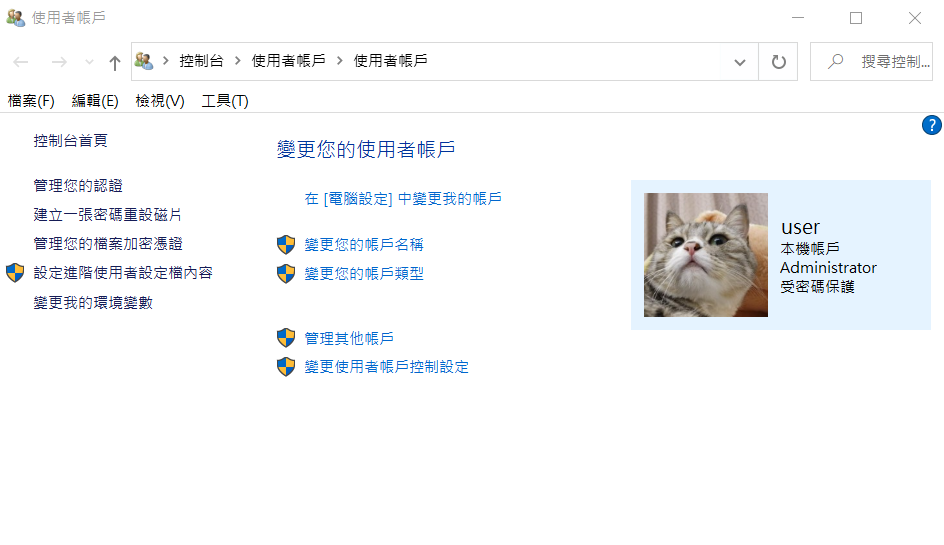
使用者帳戶
control userpasswords
control nusrmgr.cpl


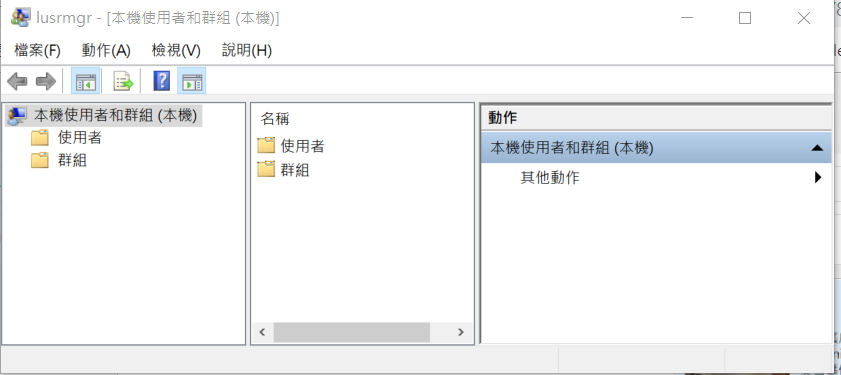
本機使用者與群組
lusrmgr.msc


系統管理工具
control admintools


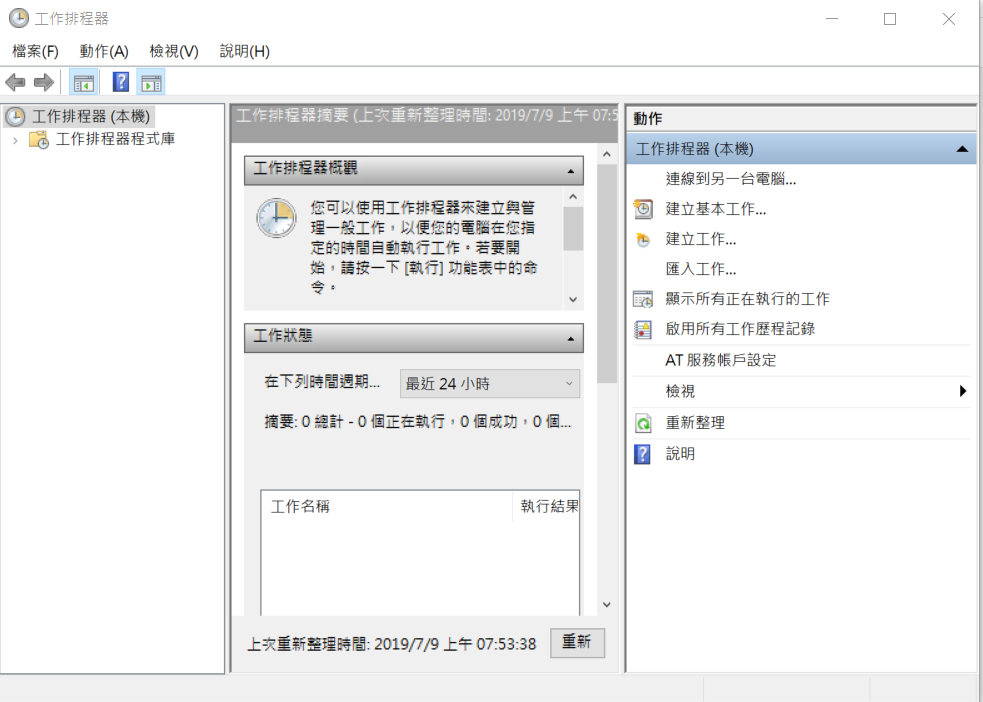
工作排程器
control schedtasks


上傳私有 NuGet 到 Azure 發生 The specified source '你的 Nuget 名稱' is invalid. Please provide a valid source. 的解決方法

試了兩種上傳方式 nuget.exe push -Source "你的 Nuget 名稱" -ApiKey CArk "*.nupkg"
與
nuget.exe push -Source "你的 Nuget 名稱" -ApiKey CArk "%1/NuGet路徑.%2.nupkg"
後一直失敗


結果發現,問題是我在 Visual Studio 設定的 NuGet 名稱跟 Azure 不一樣


所以才一直發生錯誤


讓 Hyper-V 與 VMware 共存在一台 Windows 10 機器上

以系統管理員開啟 CMD 並下指令
新增一個開機選項 『Windows 10 關閉 Hyper-V』:
bcdedit /copy {current} /d "Windows 10 關閉 Hyper-V"

Enter 後出現以下訊息並顯示一串機碼:
已順利將項目複製到 {xxxxxxxx-xxxx-xxxx-xxxx-xxxxxxxxxxxx}

設定開機時選擇選項 『Windows 10 關閉 Hyper-V』 後會關閉 Hyper-V並開機:
bcdedit /set {xxxxxxxx-xxxx-xxxx-xxxx-xxxxxxxxxxxx} hypervisorlaunchtype OFF

重新開機後就會多出一個 『Windows 10 關閉 Hyper-V』 的開機選項了


如果還原原來的狀態
可以刪除開機選項 『Windows 10 關閉 Hyper-V』:
bcdedit /delete {上一步驟複製的 identifier 機碼}

輸入 bcdedit 可以顯示所有開機選項的機碼
可以驗證一下
剛剛的開機選項是否被刪除了


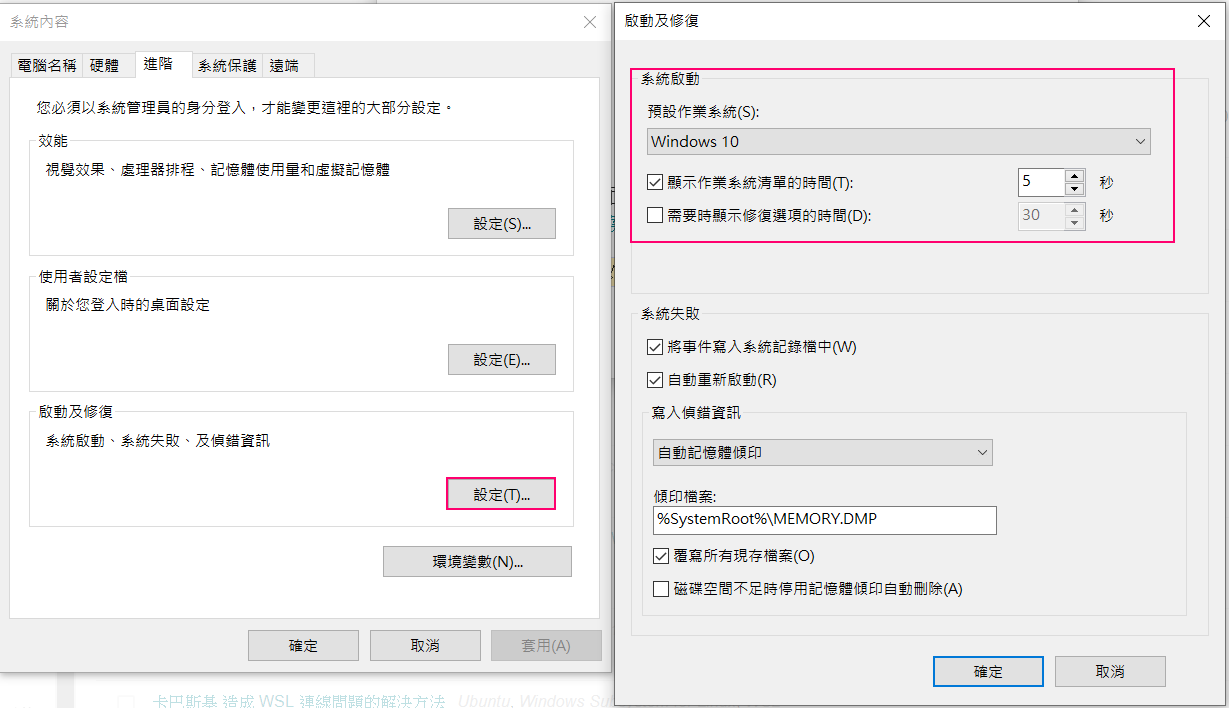
Windows 10 可以設定預設開機選項


解決win10 VirtualBox無法啟動 (VERR_NEM_VM_CREATE_FAILED)
bcdedit /set hypervisorlaunchtype off
重啟電腦就常了

2019年7月2日 星期二

Windows 10 在多個 .NET Core SDK 指定特定版本號

在目前工作目錄產生一個 global.json 文字檔案
新增內容如下:
{
  "sdk": {
    "version": "2.2.107"
  }
}

也可以用指令產生 global.json
指令內容如下:
dotnet new globaljson (要開檔改版本號)
dotnet new globaljson --sdk-version 2.2.107(直接開檔並指定版本號)

不知道版本號多少的,可以令用指令查詢
查詢目前所有安裝的 SDK 版本號指令如下:
dotnet --list-sdks


測試中意外刪除了一些快取,讓系統多出了快 10 GB


輸入 dotnet nuget locals --clear all

info : 正在清除 NuGet HTTP 快取: C:\Users\user\AppData\Local\NuGet\v3-cache
info : 正在清除 NuGet 全域套件資料夾: C:\Users\user\.nuget\packages\
info : 正在清除 NuGet 暫存快取: C:\Users\user\AppData\Local\Temp\NuGetScratch
info : 正在清除 NuGet 外掛程式快取: C:\Users\user\AppData\Local\NuGet\plugins-cache
info : 已清除本機資源。

執行的有點久,但是執行完,C 槽就增加了 10 GB左右。

類似 Visual Studio 的 「清除所有 NuGet 快取」

2019年6月29日 星期六

2019年6月27日 星期四

怎樣移除 ASP.NET Core 用 docker 來偵錯

用 NotePad++ 開啟 <專案名稱>.csproj.user

修改下列設定:

<ActiveDebugProfile>Docker</ActiveDebugProfile>

改成

<ActiveDebugProfile>Debug</ActiveDebugProfile>

就能不跑 docker 偵錯

Visual Studio 2017/2019 推薦的擴充功能與更新

參考文章: 覺得 Google 的 Blogger 不太順手?透過 HTML 的 iframe 移花接木 HackMD