2019年5月7日 星期二

超簡單安裝 Jenkins 持續整合工具 Windows 版本

Jenkins 是目前蠻多人使用的 Continuous integration  持續整合工具,簡稱 CI ,可以改善軟體開發流程,所以有一定的學習價值。

先去官網下載 Jenkins 的 Windows 版本:Jenkins 下載網址


執行安裝後,出現提示 Unlock Jenkoins,依據上面紅色字體路徑 C:\Program Files (x86)\....,取得文件內的密碼,再貼上輸入框內。


接下來 Customize Jenkins 我選 Install suggested plugins

等待下面 Getting Started 的安裝視窗,安裝有點久,去喝杯水上個廁所吧!


建立一組 Admin 帳號,然後按 Continue as admin 繼續

確認網址一下


按下 Start using Jenkins 進入系統


成功進入系統了


2019年5月5日 星期日

一毛錢都不用花,利用 GitHub 超簡單幫你建立免費網站

首先建立一個新專案
專案名稱一定要命名為「[GitHub帳號].github.io」的格式


[GitHub帳號] 如果是 Apple
就命名為 Apple.github.io

在專案裡新增一個 index.html 內容可以打


上傳後,在瀏覽器打上網址:[GitHub帳號].github.io
承上例 https://apple.github.io/
就能連上網頁


如何在 GitHub 上的 README.md 寫入 C# 程式碼

GitHub 上寫 README.md 如果須要寫入 C# 程式碼範例 可以透過 ```csharp 開頭包住程式碼並用 ```做結尾 格式如下:


```csharp
public class MyLogger : ILogger
{
    public void Print(string msg, Color color)
    {
        Log.Print(msg, color);
    }
}
```


這樣就能順眼的顯示 C# 的程式碼了,如下圖:


2019年4月26日 星期五

Visual Studio 2017 超簡單連線到 MySQL

下載 MySQL for Visual Studio 1.2.8
https://dev.mysql.com/downloads/windows/visualstudio/

點選 No thanks, just start my download.

安裝完畢
選擇是「伺服器總管」、「資料連接」並按下滑鼠右鍵「加入連接」
點選「變更」選擇 MySQL並填入 URL、帳號、密碼與資料庫名稱
測試連線正常就能開始操作資料庫了


使用 Visual Studio Code 超簡單連接 MySQL 資料庫進行查詢

Ctrl + Shift + X 安裝延伸模組 MySQL 與 MySQL Syntax


點擊+新增MySQL連線
填入 URL 、帳號、密碼、Port 他他可以 Enter 略過不填
選擇資料庫、資料表、並按下滑鼠右鍵就能開始查詢了


Visual Studio Code 超簡單切換為繁體中文語系

Ctrl + Shift + P 輸入 lang 選擇 Configure Display Language
點選 Install additional language
選擇繁體中文語言包

安裝完畢重開就是繁體中文語言了。


Release 版本編譯錯誤:工作無法使用 SdkToolsPath 的解決方法....

錯誤:

工作無法使用 SdkToolsPath

"C:\Program Files (x86)\Microsoft SDKs\Windows\v10.0A\bin\NETFX 4.6.1 Tools\"

或登錄機碼

"HKEY_LOCAL_MACHINE\SOFTWARE\Microsoft\Microsoft SDKs\NETFXSDK\4.7.2\WinSDK-NetFx40Tools-x86"

找到 "sgen.exe"。
請確認已設定 SdkToolsPath、工具位於 SdkToolsPath 底下的正確處理器專屬位置,且已安裝 Microsoft Windows SDK

只要「關閉」掉「產生序列化組件」就能編譯成功。


2019年2月28日 星期四

WSL 安裝 Visual Studio Code 記錄筆記

去官網下載 .deb 安裝檔
https://code.visualstudio.com/download

使用 dpkg 指令安裝 Visual Studio Code
sudo dpkg -i code_1.31.1-1549938243_amd64.deb

如果發生錯誤訊息:
dpkg: dependency problems prevent configuration of code:
 code depends on libnotify4; however:
  Package libnotify4 is not installed.
....
 code depends on libxss1; however:
  Package libxss1 is not installed.

dpkg: error processing package code (--install):
 dependency problems - leaving unconfigured
Processing triggers for mime-support (3.60ubuntu1) ...
Errors were encountered while processing:
 code

先執行 sudo su 換 root 權限
輸入
sudo apt update
sudo apt-get -f upgrade
執行更新一下

再安裝相關依賴的函示庫
sudo apt install libnotify4 libnss3 libxkbfile1 libsecret-1-0 libgtk-3-0 libxss1

再輸入一次安裝 Visual Studio Code
sudo dpkg -i code_1.31.1-1549938243_amd64.deb
應該是就安裝成功了(到這一步,我安裝成功了)

輸入 code 執行 Visual Studio Code
如果發生錯誤訊息:
/usr/share/code/bin/../code: error while loading shared libraries: libX11-xcb.so.1: cannot open shared object file: No such file or directory

輸入
sudo apt-get install libxss1

如果還是一樣發生錯誤,可以試試輸入
sudo apt-get install gconf-service libxext6 libxfixes3 libxi6 libxrandr2 libxrender1 libcairo2 libcups2 libdbus-1-3 libexpat1 libfontconfig1 libgcc1 libgconf-2-4 libgdk-pixbuf2.0-0 libglib2.0-0 libgtk-3-0 libnspr4 libpango-1.0-0 libpangocairo-1.0-0 libstdc++6 libx11-6 libx11-xcb1 libxcb1 libxcomposite1 libxcursor1 libxdamage1 libxss1 libxtst6 libappindicator1 libnss3 libasound2 libatk1.0-0 libc6 ca-certificates fonts-liberation lsb-release xdg-utils wget

安裝完

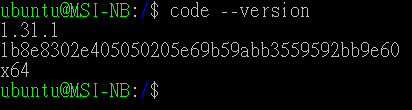
輸入 code --version 測試 Visual Studio Code 是否安裝成功!


顯示版本號,安裝成功!

2019年2月26日 星期二

ASP.NET Core (包含 .NET Core)如何超簡單讀取客制化 json 檔案

利用 ConfigurationBuilder 就可以讀取客制化的 Json 檔案

                // 讀取客制化 Json 檔案
                // Json 檔案格為 appsettings.[目前組態].json
                string appsettingJson_ = $"appsettings.{DebuggingProperties.Config}.json";

                // 讀取目錄內客制化的 Json 檔案
                _config = new ConfigurationBuilder()
                .SetBasePath(Directory.GetCurrentDirectory())
                .AddJsonFile(appsettingJson_, optional: true)
                .Build();

DebuggingProperties.Config 的原理可以參考這篇:怎樣判斷 .NET Core (包含 ASP.NET Core)是 Debug 或 Release ?

Microsoft Visual Studio 無法連接到 Web 伺服器 'IIS Express' 的解決方法

今天莫名其妙出現「無法連接到 Web 伺服器 'IIS Express'」的錯誤訊息


一直無法 Debug
查了一下專案「屬性」設定


修改「偵錯」頁籤
的「應用程式 URL」後面得 Port
就能正常偵錯了

2019年2月25日 星期一

ASP.NET Core (包含 .NET Core)依據組態為 Release 或 Debug 取得各自的設定內容

首先取得目前的組態,如下列的程式碼:
原理可以參考這篇:怎樣判斷 .NET Core (包含 ASP.NET Core)是 Debug 或 Release ?


    public static class DebuggingProperties
    {
        /// 
        /// 檢查當前正在運行的程式組態。
        /// 
        public static string Config
        {
            get
            {
                if (_ConfigAttribute == null)
                {
                    var assembly = Assembly.GetEntryAssembly();
                    if (assembly == null)
                    {
                        // 由於調用 GetFrames 的 StackTrace 實例沒有跳過任何幀,所以 GetFrames() 一定不為 null。
                        assembly = new StackTrace().GetFrames().Last().GetMethod().Module.Assembly;
                    }

                    var assemblyConfigurationAttribute = assembly.GetCustomAttribute();
                    _ConfigAttribute = assemblyConfigurationAttribute.Configuration;
                }

                return _ConfigAttribute;
            }
        }

        private static string _ConfigAttribute;
    }

appsettings.json 檔案設定格式如下:


{
  "Release": {
    "DefaultConnection": " Release Server"
  },
  "Debug": {
    "DefaultConnection": "Debug Server"
  }
}

需要組態設定時,只要如下呼叫即可: 在 Startup.cs 新增下列程式碼:
            public IConfiguration _config { get; } 

// 取的 appsettings.json 的設定
public Startup(IConfiguration configuration)      
{                                               
    _config = configuration;                
}                                                 


// 執行中取得組態設定的方式
public void Run()
{
    // 取的 appsettings.json 的 Release 或 Debug 組態設定
    var cfg_ = _config.GetSection(DebuggingProperties.Config);
    // 取的 appsettings.json 指定組態設定內容
    string def_ = cfg_ .GetValue("DefaultConnection");
            }

Visual Studio 2017/2019 推薦的擴充功能與更新

參考文章: 覺得 Google 的 Blogger 不太順手?透過 HTML 的 iframe 移花接木 HackMD