因為 Blazor 只支援到 ASP.NET Core 2.1.7
(PS.試過 AWS EC2 預設 ASP.NET Core 2.1.2 也能正常執行 2.1.302 版)
所以不抓最新版 2.1.504
而是抓 2.1.503 版
先執行 sudo su 換 root 權限(輸入 cd $HOME 是否在要安裝的目錄上,不是才需要換 root)
並且 sudo apt-get install 的安裝方式,隨著版本推進,會有很多錯誤發生。
所以採用抓取 .NET Core Binaries 2.1.503 版的檔案,還進行更新,網址如下:
https://dotnet.microsoft.com/download/thank-you/dotnet-sdk-2.1.503-linux-x64-binaries
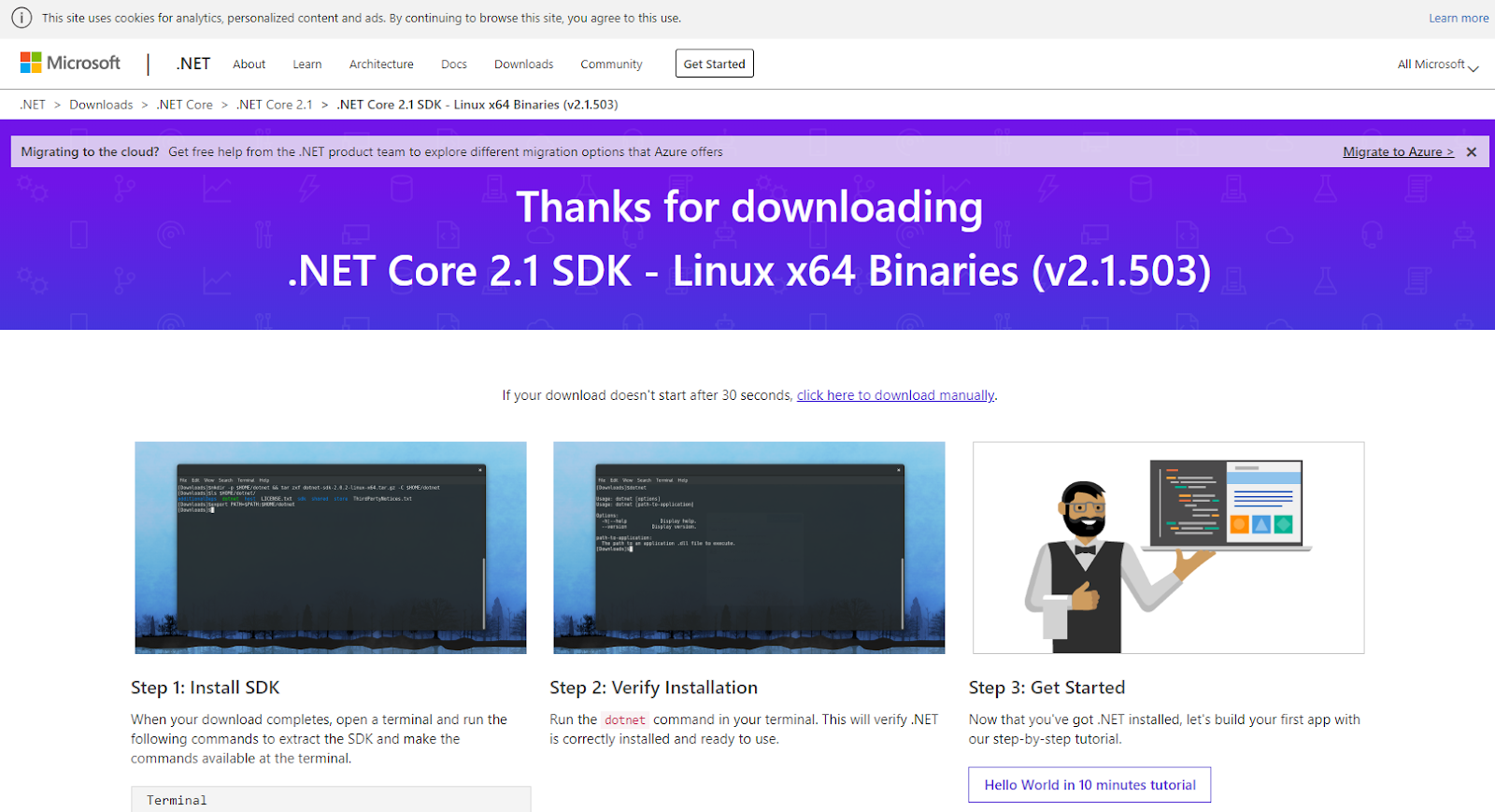
需要其他版本可以在這邊下載適合的 .NET Core Binaries 檔案,網址如下:
https://dotnet.microsoft.com/download/dotnet-core/2.1
在 dotnet-sdk-2.1.503-linux-x64.tar.gz 目錄下執行下面的指令:
先執行 sudo su 換 root 權限
mkdir -p $HOME/dotnet && tar zxf dotnet-sdk-2.1.503-linux-x64.tar.gz -C $HOME/dotnet
export DOTNET_ROOT=$HOME/dotnet
export PATH=$PATH:$HOME/dotnet
執行 dotnet --info 驗證是否安裝成功
關閉 Session 後
下次登入如果因為 export 沒有 DOTNET_ROOT
(目前有遇到 WSL 關閉後前面的 export 會消失)
而無法執行 dotnet
可以用 vim /etc/profile(先執行 sudo su 換 root 權限)
修改系統檔案都要用 root 權限
先執行 sudo su 換 root 權限
然後
按下 i (-- INSERT --)
在 profile 檔案末端加上
export DOTNET_ROOT=$HOME/dotnet
export PATH=$PATH:$HOME/dotnet
如果一樣無法執行 dotnet
可以用指令測試一下是否能直接執行 dotnet
通常是 /usr/share/dotnet/dotnet
如果可執行
就可以改成絕對路徑
export DOTNET_ROOT=/usr/share/dotnet
export PATH=$PATH:/usr/share/dotnet
重新登入後,試試看是否能正常執行 dotnet
輸入 :wq
離開 vim 編輯
輸入 . /etc/profile 重新載入 profile 檔案
就能在任何目錄上呼叫 dotnet 了
2019年1月22日 星期二
2019年1月16日 星期三
解決:更新 Windows 10 後,Microsoft Store 與 App 都不見了的問題
使用系統管理員的權限打開 PowerShell。
輸入下列指令執行:
Get-AppXPackage *WindowsStore* -AllUsers | Foreach {Add-AppxPackage -DisableDevelopmentMode -Register "$($_.InstallLocation)\AppXManifest.xml"}
就可以安裝 Microsoft Store。
點擊一下「下載與更新」, Microsoft Store 會更新為最新版。
點擊「已擁有的全部項目」,可以再安裝之前安裝過的 App。
輸入下列指令執行:
Get-AppXPackage *WindowsStore* -AllUsers | Foreach {Add-AppxPackage -DisableDevelopmentMode -Register "$($_.InstallLocation)\AppXManifest.xml"}
就可以安裝 Microsoft Store。
點擊一下「下載與更新」, Microsoft Store 會更新為最新版。
點擊「已擁有的全部項目」,可以再安裝之前安裝過的 App。
2019年1月10日 星期四
解決 WMI Provider Host 占用 CPU 問題
最近電腦沒在操作,CPU 風扇一直高速在運轉,查了一下工作管理員,發現 WMI Provider Host 一直占用著 CPU。
檢查一下「事件檢視器」應用程式及服務紀錄檔\Microsoft\Windows\WMI-Activity\Poerational,發現有錯誤一直在洗紀錄。
看了一下 Log 引起錯誤的是 ProcessID 為 3600 的應用程式,馬上反查一下「工作管理員」PID 為 3600 是 Docker.Service。
把 Docker 關閉後就正常了。
2019年1月1日 星期二
C# Tuples 回傳一個以上的回傳值
C# 7 函式內部回傳兩個回傳值:
C# 7 函式外部接兩個回傳值:
(bool retIsError, string retMessage) Request(string request, string returnValue)
{
// Tuples
bool retIsError_ = true;
string retMessage_ = "";
// 處理
retIsError_ = false;
retMessage_ = "成功";
return (retIsError_, retMessage_);
}
C# 7 函式外部接兩個回傳值:
// 接兩個回傳值
var (retIsError, retMessage) = Request(request, ref returnValue_);
if (retIsError)
{
return returnValue_;
}
2018年9月11日 星期二
Docker 出現 error during connect 錯誤的解決方法
一開啟 Docker 發現有錯誤訊息
error during connect: Get http://%2F%2F.%2Fpipe%2Fdocker_engine/v1.39/version: open //./pipe/docker_engine: The system cannot find the file specified. In the default daemon configuration on Windows, the docker client must be run elevated to connect. This error may also indicate that the docker daemon is not running.
查了一下,發現 Docker 沒有開啟,重起一下就正常了。
error during connect: Get http://%2F%2F.%2Fpipe%2Fdocker_engine/v1.39/version: open //./pipe/docker_engine: The system cannot find the file specified. In the default daemon configuration on Windows, the docker client must be run elevated to connect. This error may also indicate that the docker daemon is not running.
查了一下,發現 Docker 沒有開啟,重起一下就正常了。
2018年9月10日 星期一
在 docker 的 ubuntu 安裝 dotnet 不能執行的問題解決方法
在 docker 的 ubuntu
安裝 dotnet 2.1 後
執行
root@1473781a7c69:/# dotnet --version
出現錯誤
FailFast:
Couldn't find a valid ICU package installed on the system. Set the configuration flag System.Globalization.Invariant to true if you want to run with no globalization support.
安裝 ICU
apt-get install ICU
出現錯誤
E: Unable to locate package ICU
改成安裝 libicu-dev
apt-get install libicu-dev
就能正常安裝 ICU 與執行 dotnet
執行 dotnet 程式輸入
root@1473781a7c69:/home/linux-x64# dotnet Server.dll
出現錯誤
No usable version of the libssl was found
Aborted
再安裝 libssl
apt-get install libssl-dev
再把 openssl 1.1 降版本到 1.0 版
apt-get install -y --allow-downgrades openssl1.0
因為 dotnet 2.1 只支援 openssl 1.0
openssl 降版本後 dotnet 2.1 就能正常執行了
記得指令輸入前先執行 apt-get update
安裝 dotnet 2.1 後
執行
root@1473781a7c69:/# dotnet --version
出現錯誤
FailFast:
Couldn't find a valid ICU package installed on the system. Set the configuration flag System.Globalization.Invariant to true if you want to run with no globalization support.
安裝 ICU
apt-get install ICU
出現錯誤
E: Unable to locate package ICU
改成安裝 libicu-dev
apt-get install libicu-dev
就能正常安裝 ICU 與執行 dotnet
執行 dotnet 程式輸入
root@1473781a7c69:/home/linux-x64# dotnet Server.dll
出現錯誤
No usable version of the libssl was found
Aborted
再安裝 libssl
apt-get install libssl-dev
再把 openssl 1.1 降版本到 1.0 版
apt-get install -y --allow-downgrades openssl1.0
因為 dotnet 2.1 只支援 openssl 1.0
openssl 降版本後 dotnet 2.1 就能正常執行了
記得指令輸入前先執行 apt-get update
docker 的一些基礎操作
docker cp
複製本地檔案到 docker containerdocker cp foo.txt container_id:/foo.txt
範例
docker cp foo1.txt 8b44799aacc4:/foo1.txt
複製本地目錄到 docker container
docker cp src/. container_id:/target
範例
docker cp cp_test/. 8b44799aacc4:/cp_test
複製 docker container 檔案到本地
docker cp container_id:/foo.txt foo.txt
範例
docker cp 8b44799aacc4:/foo1.txt foo.txt
複製 docker container 目錄到本地
docker cp container_id:/src/. src
範例
docker cp 8b44799aacc4:/cp_test/. cp_test1
docker save
匯出 docker 的 image 到 tar 檔案docker save image_id > ubuntu.tar
docker export
匯出 docker container 到 tar 檔案docker export container_id > ubuntu.tar
範例
docker export 90c79973be12 > ubuntu.tar
docker load
載入存成 tar 的 image 檔案到 docker imagedocker load < ubuntu.tar
載入存成 tar 的 container 檔案到 docker image
docker import ubuntu.tar
docker ps
顯示執行中的 docker containerdocker ps
顯示所有的 docker container
docker ps -a
docker stop
關閉執行中的 docker containerdocker stop container_id
範例
docker stop 8b44799aacc4
docker rm
刪除 docker container(必須是關閉狀態的 container)docker rm container_id
docker images
顯示所有 imagedocker images
docker image rm
刪除 imagedocker image rm image_id
範例
docker image rm 47b19964fb50
docker run
docker 用終端機模式執行未存在的 image 成為 containerdocker run -it image_id
範例
docker run -it 47b19964fb50
發生錯誤訊息
docker: Error response from daemon: No command specified.
請改用
docker run -t -i 47b19964fb50 /bin/bash
docker exec
docker 用終端機模式執行已存在的 containerdocker exec -it container_id
範例
docker exec 47b19964fb50
docker run -it image_id 發生錯誤的解決方法
執行 docker run -it image_id
發生了錯誤訊息
docker: Error response from daemon: No command specified.
改用
docker run -t -i image_id /bin/bash 就正常了
發生了錯誤訊息
docker: Error response from daemon: No command specified.
改用
docker run -t -i image_id /bin/bash 就正常了
2018年8月27日 星期一
C# 利用變數接函式副本
變數 Action function 可以接 void Function() 的副本
例如: Action function = void Function();
變數 Action function 可以接 void Function(T) 的副本
例如: Action function = void Function(int);
變數 Func function 可以接 T3 Function(T1, T2) 的副本(PS.最後一個T3是回傳值)
例如: Func function = string Function(int, byte);
變數 Func function 可以接 T Function() 的副本
例如:Func function = int Function();
例如: Action function = void Function();
變數 Action
例如: Action
變數 Func
例如: Func
變數 Func
例如:Func
2018年8月13日 星期一
Visual Studio 2017 / 2019 Lua 語法標示的比較
Visual Studio 2017 NPL_LuaLanguageService
Visual Studio 2019 Syntax Highlighting Pack
目前使用的 Lua 語法標示
Visual Studio 2019 目前沒的選,只能用 Syntax Highlighting Pack
Visual Studio 2017 目前有3種選擇,我先選了 NPL_LuaLanguageService
大家可以參考一下。
Visual Studio 2019 Syntax Highlighting Pack
目前使用的 Lua 語法標示
Visual Studio 2019 目前沒的選,只能用 Syntax Highlighting Pack
Visual Studio 2017 目前有3種選擇,我先選了 NPL_LuaLanguageService
大家可以參考一下。
C# 上引用 Script Language 效能比較
使用了 nuget 的
MoonSharp(LUA)
CS-Script.Core(CS)
速度 func 最快
func > lua > cs
下面順序都是 func、lua、cs
執行總時間比(func = 0.0022)
1 : 87.2 : 1369.7
結論:
#不意外,cs 最慢。
初始化時間比(func = 0.0014)
1 : 132.1 : 2134
結論:
#cs 初始化超級慢,拖累執行效率。
執行時間比(func = 0.0008)
1 : 6.8 : 1.9
結論:
#意外的是,lua 竟然比 cs 慢,推測是 lua 反射查詢的機制比較複雜,拖累 lua 執行效率。
MoonSharp(LUA)
CS-Script.Core(CS)
速度 func 最快
func > lua > cs
下面順序都是 func、lua、cs
執行總時間比(func = 0.0022)
1 : 87.2 : 1369.7
結論:
#不意外,cs 最慢。
初始化時間比(func = 0.0014)
1 : 132.1 : 2134
結論:
#cs 初始化超級慢,拖累執行效率。
1 : 6.8 : 1.9
結論:
#意外的是,lua 竟然比 cs 慢,推測是 lua 反射查詢的機制比較複雜,拖累 lua 執行效率。
訂閱:
文章 (Atom)
Visual Studio 2017/2019 推薦的擴充功能與更新
參考文章: 覺得 Google 的 Blogger 不太順手?透過 HTML 的 iframe 移花接木 HackMD
-
最近電腦沒在操作,CPU 風扇一直高速在運轉,查了一下工作管理員,發現 WMI Provider Host 一直占用著 CPU。 檢查一下「事件檢視器」應用程式及服務紀錄檔\Microsoft\Windows\WMI-Activity\Poerational,發現有錯誤一...
-
當無法修復或解除安裝 Visual Studio 時, 可以透過 InstallCleanup.exe 工具來移除所有安裝的 Visual Studio。 InstallCleanup.exe 工具所在的目錄: C:\Program Files (x86)\Micros...